
Open R1: How to use OlympicCoder locally for coding
- +57






Everyone’s been using Claude and OpenAI as coding assistants for the last few years, but there’s less appeal if you look at the developments coming out of open source projects like Open R1 . If we look at the evaluation on LiveCodeBench below, we can see that the 7B parameter variant outperforms Claude 3.7 Sonnet and GPT-4o. These models are the daily drivers of many engineers in applications like Cursor and VSCode.
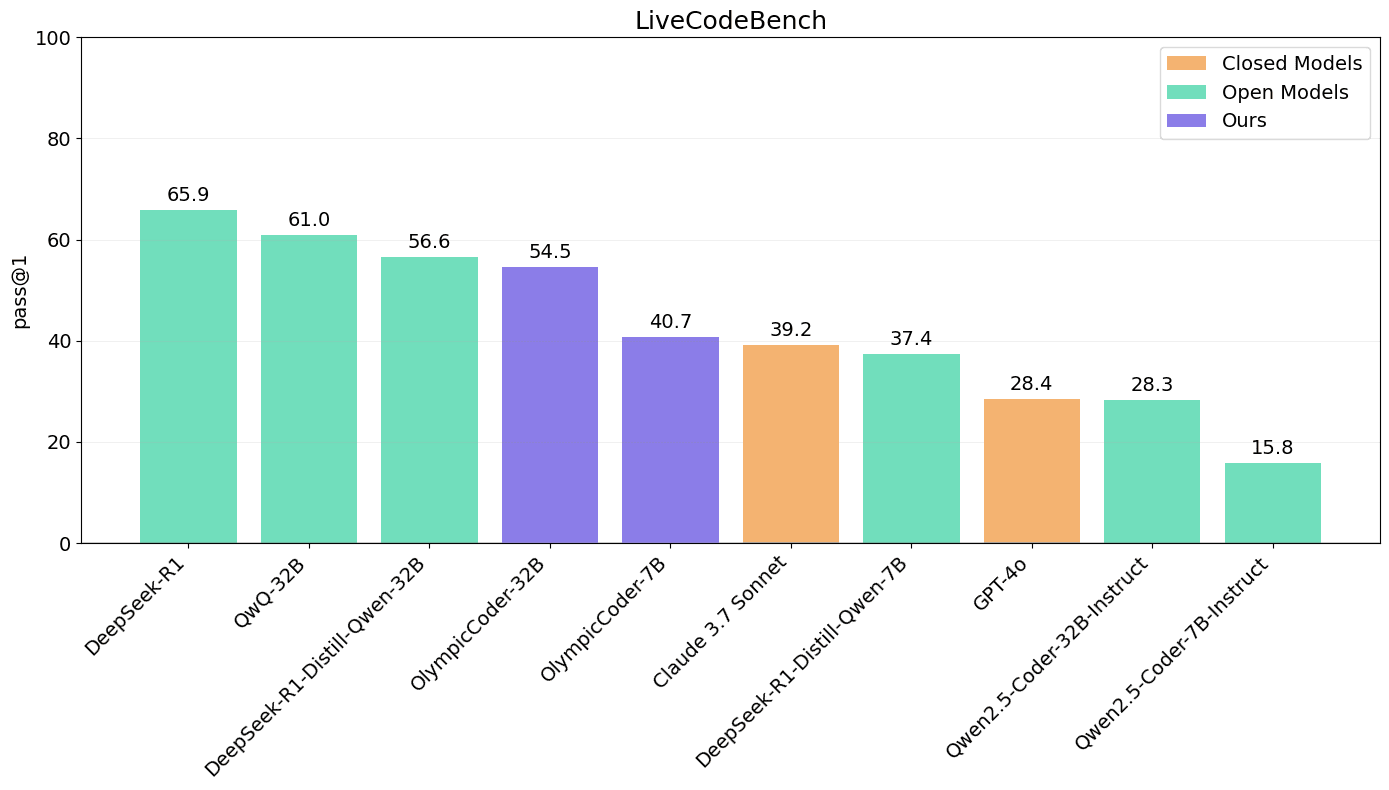
Evals are great and all, but I want to get my hands dirty and feel the commits! This blog post focuses on how you can integrate these models in your IDE now. We will set up OlympicCoder 7B, the smaller of the two OlympicCoder variants, and we’ll use a quantized variant for optimum local inference. Here’s the stack we’re going to use:
- OlympicCoder 7B. The 4bit GGUF version from the LMStudio Community
- LM Studio: A tool that simplifies running AI models
- Visual Studio Code (VS Code)
- Continue a VS Code extension for local models
It’s important to say that we chose this stack purely for simplicity. You might want to experiment with the larger model and/or different GGUF files. Or even alternative inference engines like llama.cpp .

1. Install LM Studio
LM Studio is like a control panel for AI models. It integrates with the Hugging Face hub to pull models, helps you find the right GGUF file, and exposes an API that other applications can use to interact with the model.
In short, it lets you download and run them without any complicated setup.
- Go to the LM Studio website: Open your web browser and go to https://lmstudio.ai/download .
- Choose your operating system: Click the download button for your computer (Windows, Mac, or Linux).
- Install LM Studio: Run the downloaded file and follow the instructions. It’s just like installing any other program.
2. Get OlympicCoder 7B
The GGUF files that we need are hosted on the hub. We can open the model from the hub in LMStudio, using the ‘Use this model’ button:
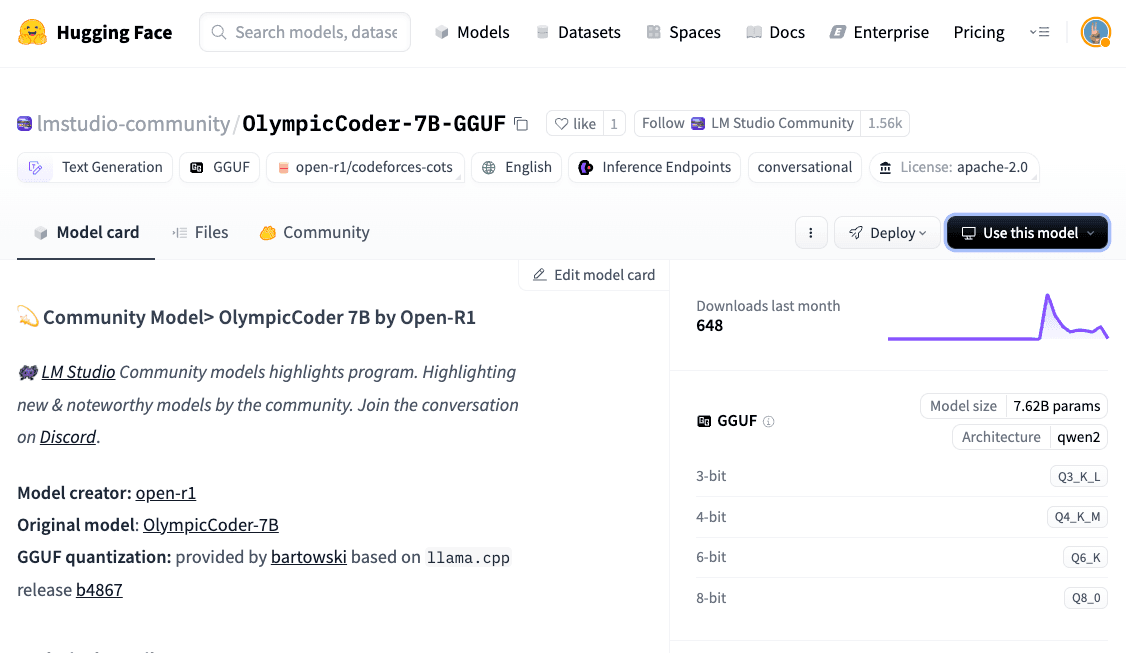
This will link to the LMStudio application and open it on your machine. You’ll just need to Choose a Quantization. I went for Q4_K_M because it will perform well on most devices. If you have more compute, you might want to try out one of the options with Q8_* .
If you want to skip the UI, you can also load models with LMStudio via the command line:
lms get lmstudio-community/OlympicCoder-7B-GGUF
lms load olympiccoder-7b
lms server start
3. Connect LM Studio to VS Code
This is the important part. We now need to integrate VScode with the model served by LMStudio.
- In LM Studio, activate the server on the ‘Developer’ tab. This will expose the endpoints at http://localhost:1234/v1 .

- Install the VS Code Extension to connect to our local server. I went for Continue.dev, but there are other options too. In VSCode, go to the Extensions view (click the square icon on the left sidebar, or press Ctrl+Shift+X / Cmd+Shift+X).
- Search for “Continue” and install the extension from “Continue Dev”.
- Open the Continue tab and in the models dropdown, select ‘add new chat model’.
- This will open a json configuration file. You’ll need to specify the model name. I.e. olympiccoder-7b
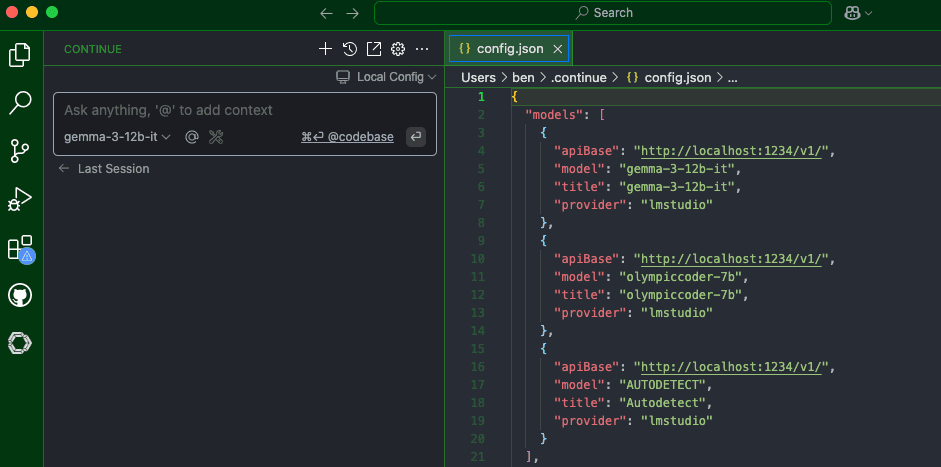
🚀 You’ve got a local coding assistant!
Most of the core AI features in vscode are available via this setup, for example:
- Code Completion: Start typing, and the AI will suggest how to finish your code.
- Generate Code: Ask it to write a function or a whole block of code. For example, you could type (in a comment or a chat window, depending on the extension): // Write a function to reverse a string in JavaScript
- Explain Code: Select some code and ask the AI to explain what it does.
- Refactor Code: Ask the AI to make your code cleaner or more efficient.
- Write Tests: Ask the AI to create unit tests for your code.
🏋️♀️ What’s the vibe of OlympicCoder?
OlympicCoder is not Claude. It’s optimised on the CodeForces-CoTs dataset which is based on competitive coding challenges. That means that you should not expect it to be super friendly and explanatory. Instead, roll up your sleeves and expect a no-holds barred competitive coder ready to deal with tough problems.
You might want to mix up OlympicCoder with other models to get a rounded coding experience. For example, if you’re trying to squeeze milliseconds out of a binary search, try OlympicCoder. If you want to design a user facing API, go for Claude-3.7-sonnet or Qwen-2.5-Coder .
Next Steps
- Share your favorite generations in the comments below
- Try out another variant of OlympicCoder from the hub.
- Experiment with quantization types based on your hardware.
- Try out multiple models in LM Studio for different coding vibes! Check out the model catalog https://lmstudio.ai/models
- Experiment with other VS Code extensions like Cline which have agentic functionality
Models mentioned in this article 3
Datasets mentioned in this article 1
Collections mentioned in this article 1
More Articles from our Blog
DeepSeek-V4: a million-token context that agents can actually use
Ecom-RLVE: Adaptive Verifiable Environments for E-Commerce Conversational Agents
Community
I don't see the chart you posted on https://livecodebench.github.io/leaderboard.html . What am I missing?
- 1 reply
it is at https://huggingface.co/open-r1/OlympicCoder-7B
VS Code only? What about VI?
- 1 reply
Not an industry standard for professionals:
Visual Studio Code 74% Visual Studio 29.7% IntelliJ IDEA 27.9% Notepad++ 24% Vim 21.6%
https://survey.stackoverflow.co/2024/technology#1-integrated-development-environment
Hence continue.dev only works with JetBrain and VSC.
· Sign up or log in to comment
- +51