
How to host a Unity game in a Space

Did you know you can host a Unity game in a Hugging Face Space? No? Well, you can!
Hugging Face Spaces are an easy way to build, host, and share demos. While they are typically used for Machine Learning demos, they can also host playable Unity games. Here are some examples:
- Huggy
- Farming Game
- Unity API Demo
Here's how you can host your own Unity game in a Space.
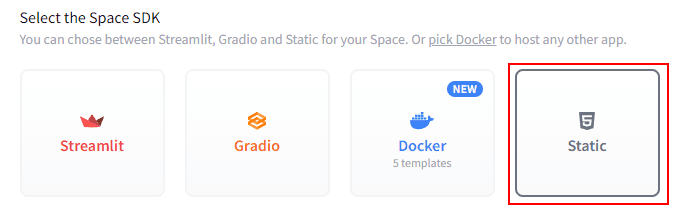
Step 1: Create a Space using the Static HTML template
First, navigate to Hugging Face Spaces to create a space.

Select the "Static HTML" template, give your Space a name, and create it.
Step 2: Use Git to Clone the Space
Clone your newly created Space to your local machine using Git. You can do this by running the following command in your terminal or command prompt:
git clone https://huggingface.co/spaces/{your-username}/{your-space-name}Step 3: Open your Unity Project
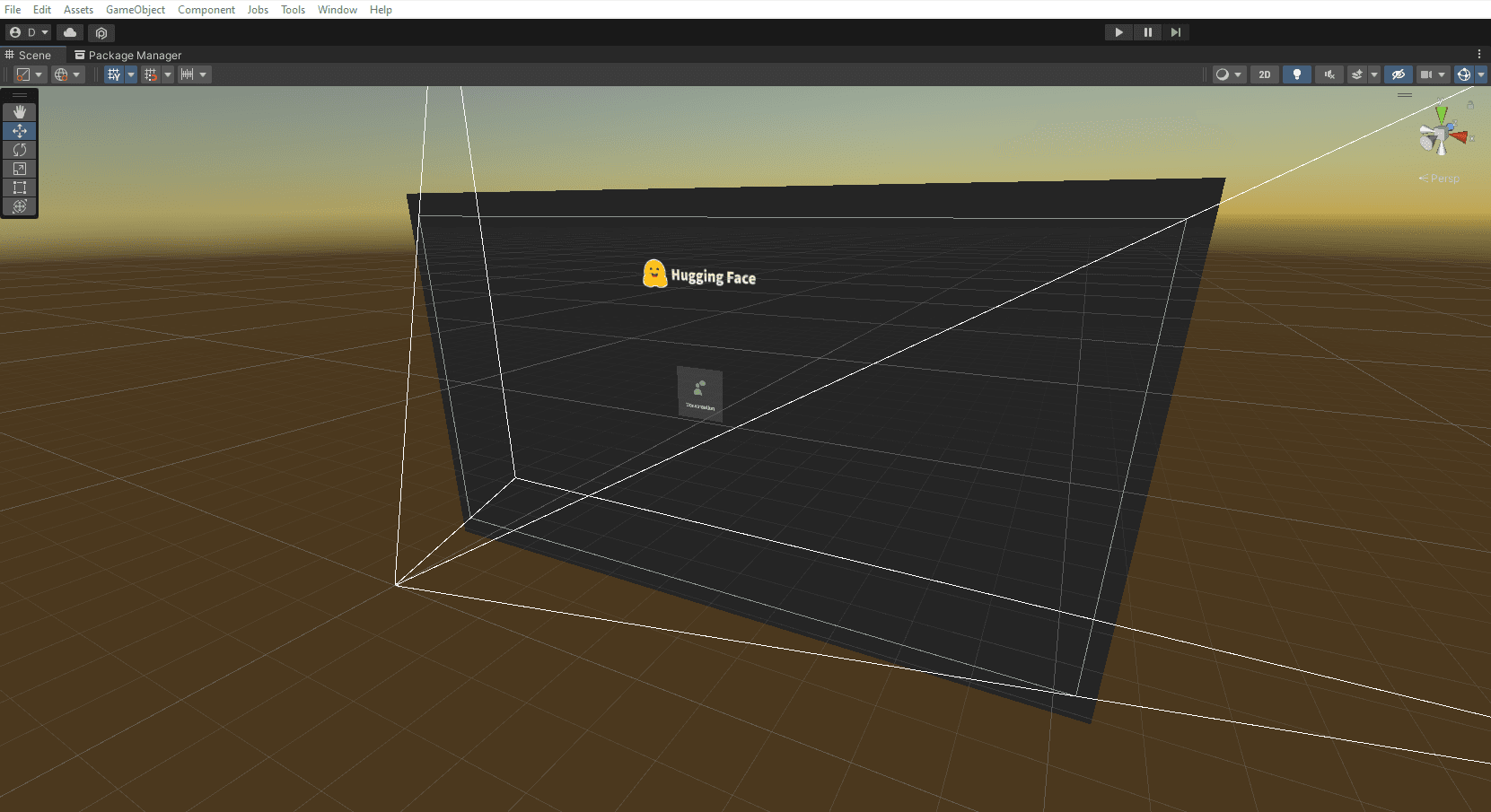
Open the Unity project you want to host in your Space.
Step 4: Switch the Build Target to WebGL
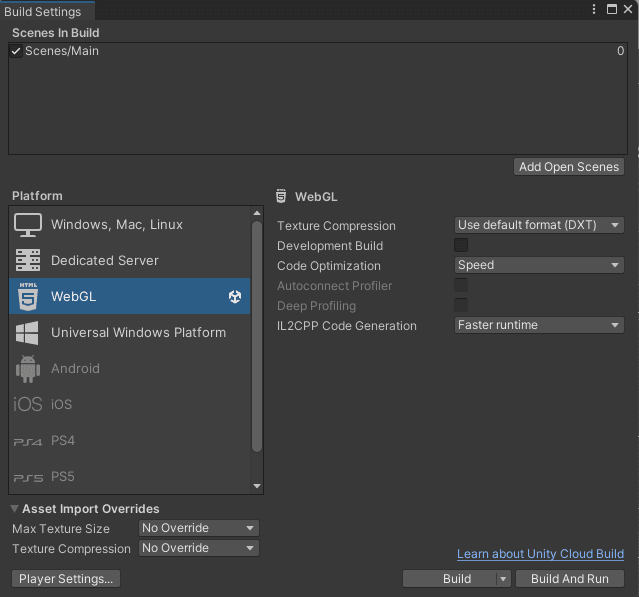
Navigate to File > Build Settings and switch the Build Target to WebGL.
Step 5: Open Player Settings
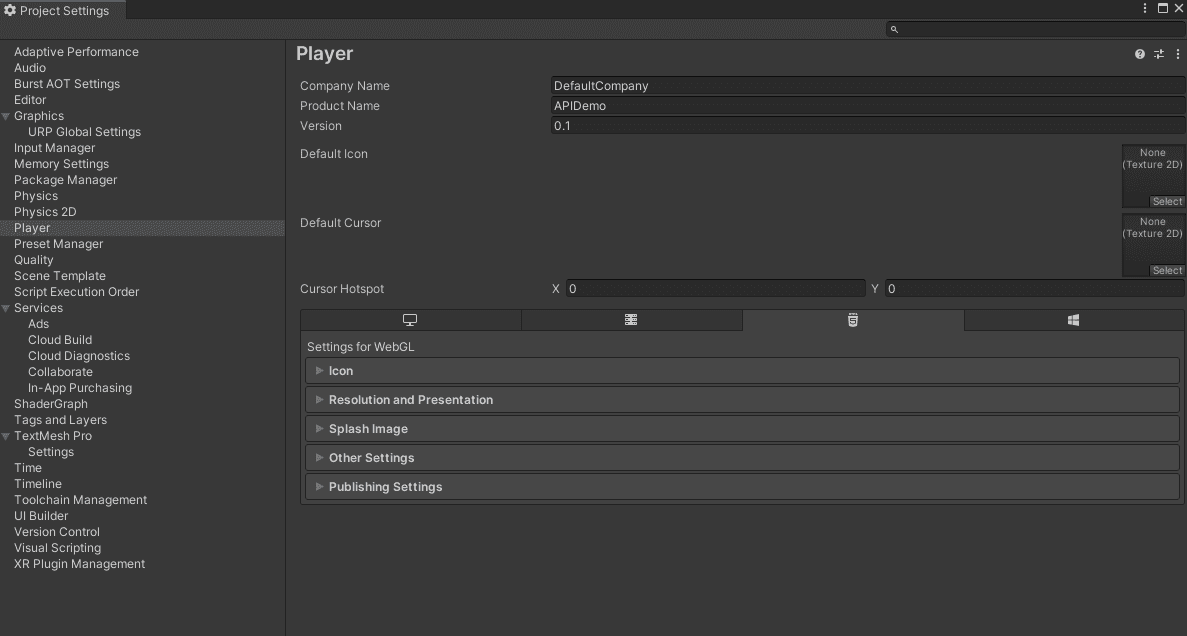
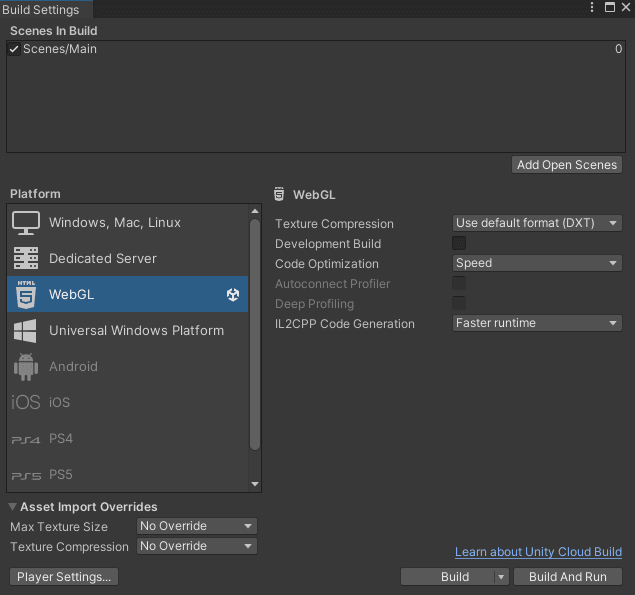
In the Build Settings window, click the "Player Settings" button to open the Player Settings panel.
Step 6: Optionally, Download the Hugging Face Unity WebGL Template
You can enhance your game's appearance in a Space by downloading the Hugging Face Unity WebGL template, available here . Just download the repository and drop it in your project files.
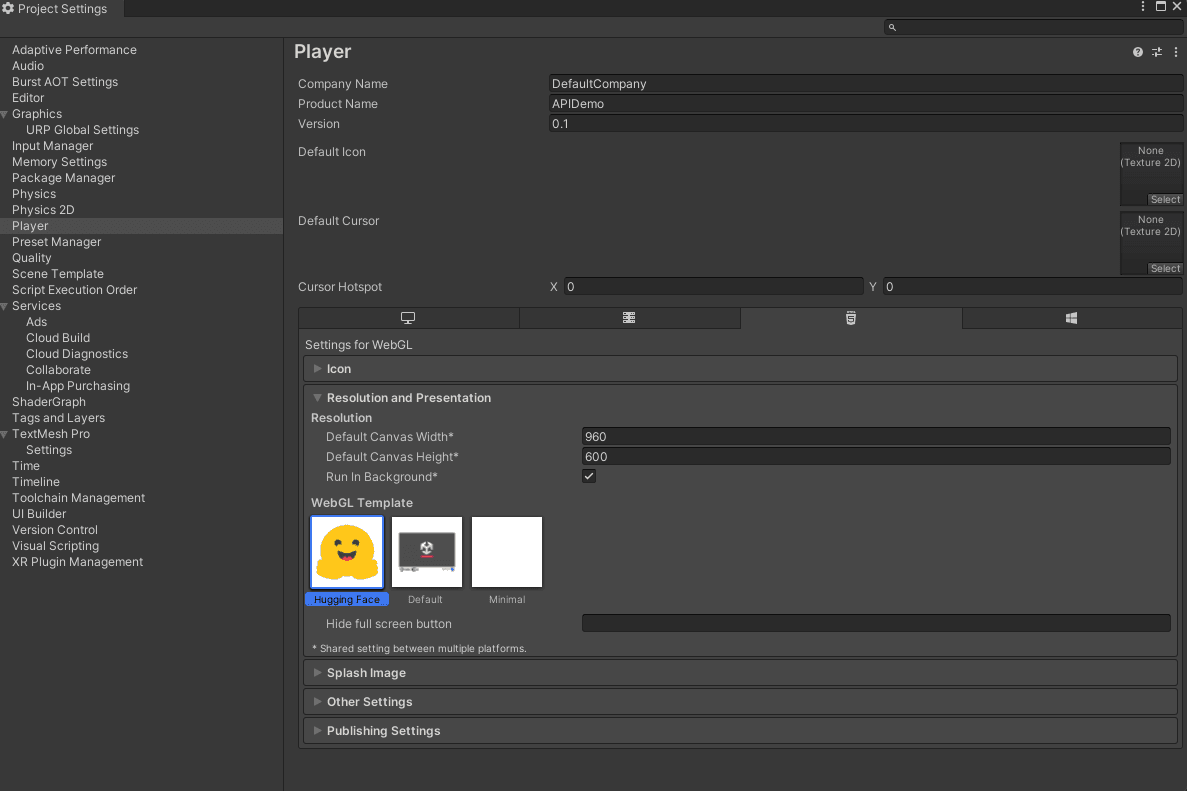
Then, in the Player Settings panel, switch the WebGL template to Hugging Face. To do so, in Player Settings, click "Resolution and Presentation", then select the Hugging Face WebGL template.
Step 7: Change the Compression Format to Disabled
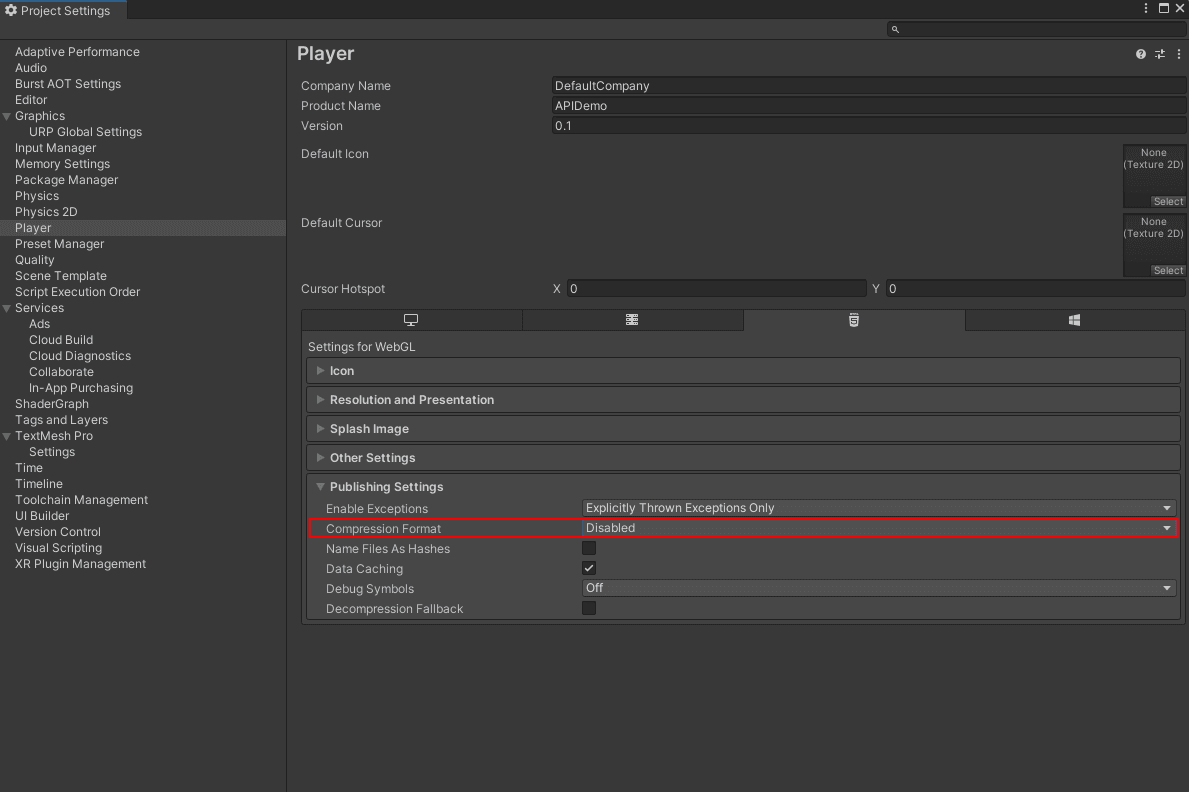
In the Player Settings panel, navigate to the "Publishing Settings" section and change the Compression Format to "Disabled".
Step 8: Build your Project
Return to the Build Settings window and click the "Build" button. Choose a location to save your build files, and Unity will build the project for WebGL.
Step 9: Copy the Contents of the Build Folder
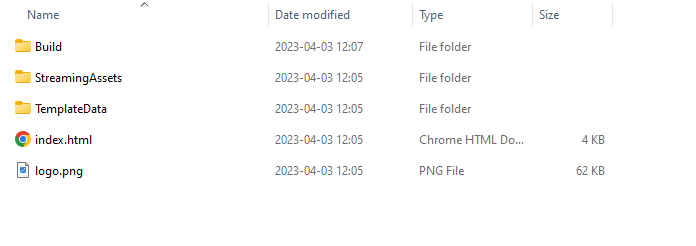
After the build process is finished, navigate to the folder containing your build files. Copy the files in the build folder to the repository you cloned in Step 2 .
Step 10: Enable Git-LFS for Large File Storage
Navigate to your repository. Use the following commands to track large build files.
git lfs install
git lfs track Build/*
Step 11: Push your Changes
Finally, use the following Git commands to push your changes:
git add .
git commit -m "Add Unity WebGL build files"
git push
Done!
Congratulations! Refresh your Space. You should now be able to play your game in a Hugging Face Space.
We hope you found this tutorial helpful. If you have any questions or would like to get more involved in using Hugging Face for Games, join the Hugging Face Discord !
More Articles from our Blog
Introduction to 3D Gaussian Splatting
Practical 3D Asset Generation: A Step-by-Step Guide
Community
· Sign up or log in to comment